Privacy-Focused Linux for Everyday Use: Free Distros & Apps in 2026
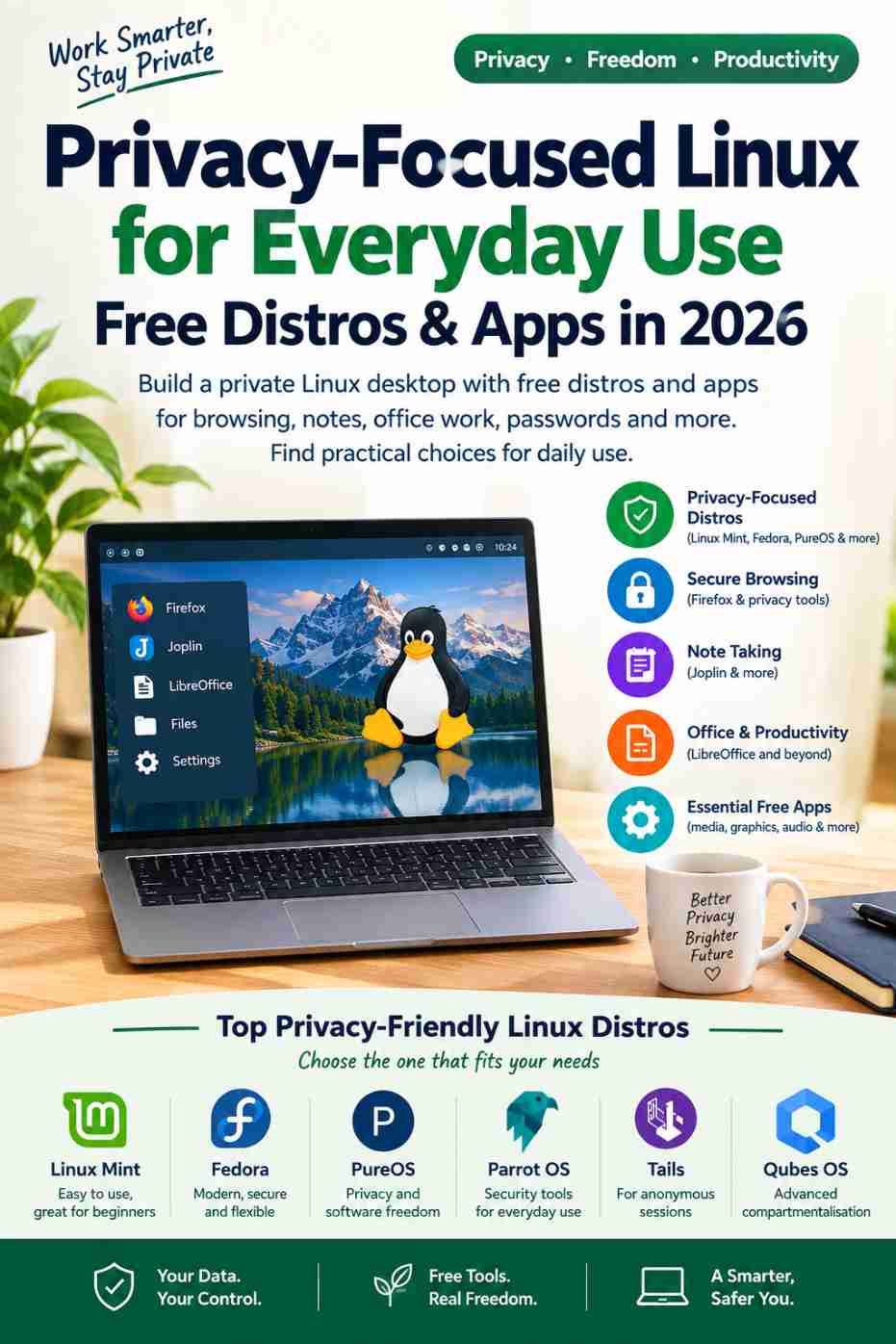
A privacy-focused Linux setup for everyday use combines a practical Linux distribution with free and open-source applications that reduce unnecessary tracking, subscriptions, vendor lock-in and dependence on proprietary software. In 2026, users can choose from mainstream Linux desktops, privacy-oriented distributions and free applications for browsing, note-taking, office work, passwords, file management, media and creative tasks. The best choice is not necessarily the most extreme privacy distribution—it is the setup that provides the right balance of privacy, usability, security, compatibility and convenience for your daily work.
Why Privacy Matters More Than Ever on a Desktop
Privacy is no longer something only security researchers, journalists or technology enthusiasts need to think about.
Your computer can contain years of documents, photographs, passwords, business information, financial records, personal notes and browsing history. The operating system and applications you use therefore matter.
At the same time, switching to Linux does not automatically make a computer private.
That is an important distinction.
Linux gives users more control over the operating system, software sources, configuration and data than many proprietary environments. But privacy still depends on how the system is configured, which applications are installed, what online services are used and how accounts are managed.
The practical goal should therefore be simple:
Build a Linux desktop that is private enough for your needs without making everyday computing unnecessarily difficult.
That is the approach this guide takes.
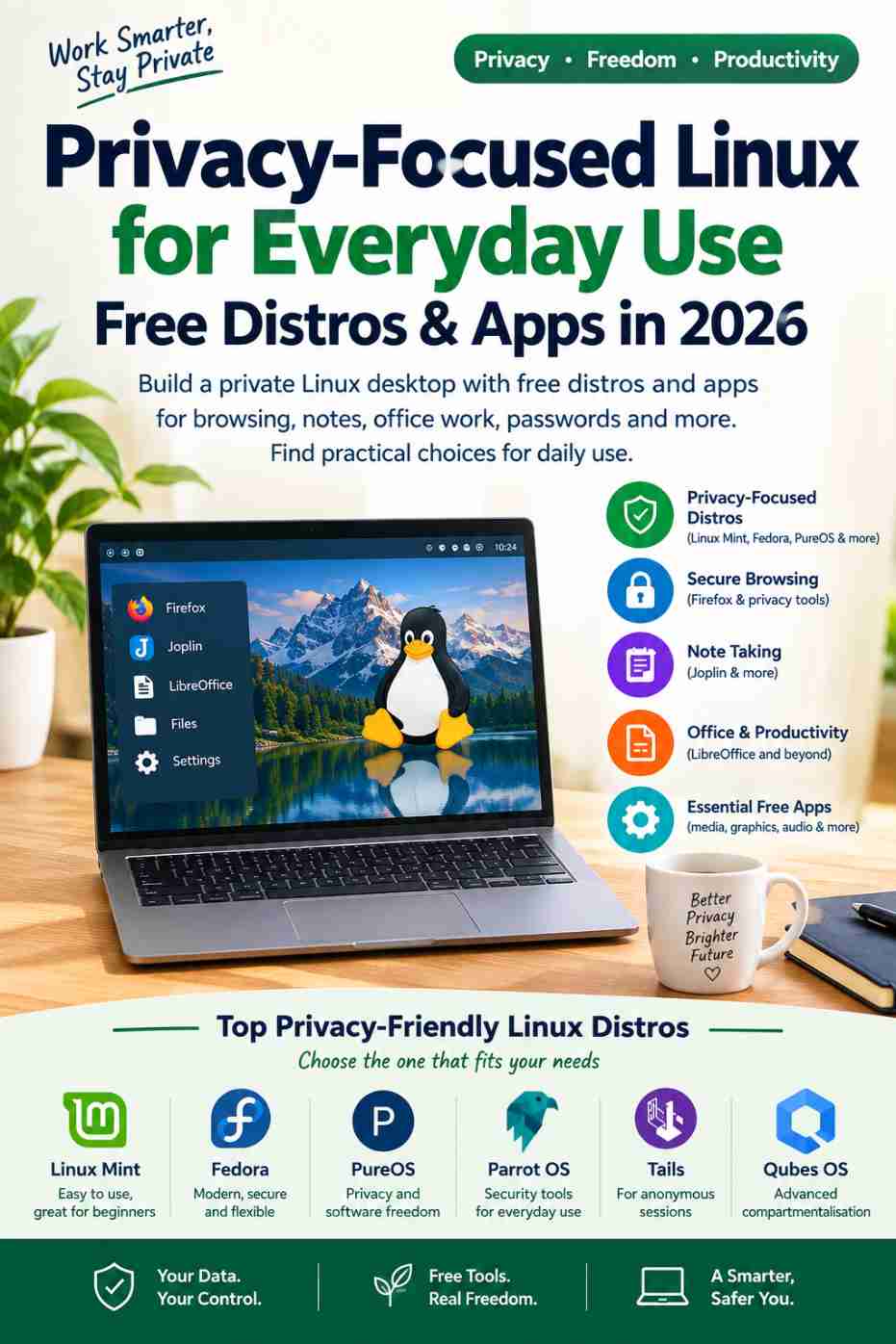
What Is a Privacy-Focused Linux Setup?
A privacy-focused Linux setup is not necessarily a specialised security distribution.
For most people, it means choosing:
- A Linux distribution with sensible security and privacy controls
- Open-source applications where practical
- A privacy-conscious web browser
- Local or encrypted note-taking
- A password manager
- Reliable backup and file synchronisation
- Minimal unnecessary software
- Regular security updates
- Strong account security
- A sensible approach to cloud services
This is very different from installing the most technically hardened operating system available and then discovering that your printer, office workflow or favourite applications no longer work properly.
Privacy should support your life—not make ordinary computing a full-time job.
Best Privacy-Focused Linux Distros for Everyday Use
There is no universal winner.
The right Linux distribution depends on your hardware, technical experience, applications and privacy requirements.
Linux Mint — A Practical Starting Point
Linux Mint remains one of the easiest options for people moving away from Windows.
Its traditional desktop approach makes the transition relatively straightforward, particularly for users who want familiar menus, file management and conventional desktop controls.
It is a strong candidate when your priority is:
- Everyday browsing
- Office work
- Media consumption
- General productivity
- Older or moderately powered hardware
- A straightforward Windows alternative
If you are completely new to Linux, start with a beginner-friendly distribution rather than jumping immediately into a specialist privacy operating system.
Best for: Beginners and everyday desktop users.
If you want a familiar Linux desktop that is easy to start with, explore Linux Mint and see whether its straightforward approach fits your everyday workflow.
Fedora Workstation — Modern and Security-Conscious
Fedora is another strong choice for users who want a current Linux desktop with a modern software ecosystem.
It is particularly attractive to developers, technically confident users and people who prefer newer desktop technologies.
Fedora is not a dedicated anonymity distribution—and it does not need to be.
For many users, a mainstream Linux desktop with sensible security practices is more useful than a specialised system designed around an extreme threat model.
Best for: Users wanting a modern Linux desktop with strong security foundations.
Prefer a more current and flexible desktop experience? Explore Fedora Workstation to see what a modern open-source Linux desktop can offer for everyday computing.
PureOS — Privacy and Freedom as Core Principles
PureOS takes a more explicit privacy and software-freedom approach.
Its official positioning is around being a secure, user-friendly operating system for daily use, with an emphasis on control and auditable software.
That makes it particularly interesting for users who want privacy to be part of their operating-system choice rather than something they add later.
Best for: Privacy-conscious users who want a daily desktop built around software freedom.
If privacy and software freedom are high on your list, take a closer look at PureOS before choosing your everyday Linux environment.
Parrot OS Home — Privacy With More Security Tools
Parrot offers different editions, and its Home edition is aimed at general-purpose computing while retaining a security-oriented ecosystem.
This makes it interesting for technically minded users who want a daily Linux desktop but also want access to privacy and security tools.
However, do not confuse a security distribution with a general-purpose beginner operating system.
If you simply want email, documents, browsing and entertainment, a mainstream desktop distribution may be the better choice.
Best for: Security-aware users and technically confident Linux users.
For readers who want a Linux environment with stronger security and privacy tools, explore Parrot OS and compare its approach with a general-purpose desktop distro.
Tails — Excellent for Specific Privacy Needs, Not a Normal Desktop Replacement
Tails deserves a mention because it is one of the best-known privacy-focused Linux systems.
But there is an important catch.
Tails is designed around anonymity and privacy-focused sessions rather than acting as a conventional permanently installed desktop for everyone's daily computing.
That makes it useful for specific scenarios, but it is not automatically the best choice for replacing Windows or macOS.
Best for: Privacy-sensitive sessions where anonymity is more important than conventional desktop convenience.
If anonymity is more important than having a conventional daily desktop, visit Tails to understand how it approaches privacy-focused computing.
Qubes OS — Powerful Isolation for Advanced Users
Qubes OS takes a fundamentally different approach by isolating activities into separate environments.
This can provide an extremely strong security model, but it also introduces complexity and hardware requirements that ordinary users may not want.
Qubes is therefore better viewed as an advanced security platform rather than the default recommendation for someone who simply wants a private Linux desktop.
Best for: Advanced users with serious compartmentalisation requirements.
If you need stronger separation between activities, explore Qubes OS and see how compartmentalization changes the way you use a desktop.
The Best Linux Distro Is the One You Can Actually Use
This is where many Linux privacy articles go wrong.
They rank distributions according to theoretical privacy or security features without considering whether an ordinary person can comfortably use the system every day.
A better decision framework is:
| Your priority | Consider |
|---|---|
| Easiest transition from Windows | Linux Mint |
| Modern desktop and development | Fedora |
| Privacy and software freedom | PureOS |
| Security-conscious daily computing | Parrot Home |
| Anonymous temporary sessions | Tails |
| Maximum compartmentalisation | Qubes OS |
The important lesson is that privacy, security, anonymity and usability are not the same thing.
A good everyday system balances all four.
Free Linux Apps for Everyday Privacy and Productivity
Choosing the operating system is only half the job.
Your applications determine what you actually do with your data every day.Here are some of the most useful categories to consider.
1. Firefox for Privacy-Conscious Browsing
The browser is arguably the most important application on a modern desktop.
For many people, most of their computing happens inside a browser.
A privacy-conscious browser setup should therefore include:
- Minimal extensions
- Regular updates
- Strong password practices
- Careful permission management
- Tracker protection
- Separate browser profiles when appropriate
Firefox is particularly relevant to an open-source and privacy-conscious Linux workflow.
The goal isn't to install dozens of privacy extensions.
In fact, excessive extensions can make browser management more complicated.
Keep your browser lean, updated and purposeful.
Your Linux setup is only as privacy-conscious as the browser you use every day. Explore Firefox and compare its privacy features with your current browser.
2. Joplin for Private Note-Taking
If you regularly create notes, research material, checklists or documentation, Joplin is one of the most interesting applications to consider.
Joplin is an open-source note-taking and to-do application with Markdown support, attachments, notebooks, tags and end-to-end encryption capabilities. It also supports multiple platforms and several synchronisation options.
That combination makes it particularly attractive to users who want more control over their notes.
You can use it for:
- Research
- Blog planning
- Meeting notes
- Personal documentation
- Project planning
- Checklists
- Long-form writing
- Knowledge management
For users coming from proprietary note-taking platforms, Joplin provides an excellent opportunity to rethink where their information actually lives.
If you want your notes to stay organized while keeping privacy in mind, explore Joplin and see how it fits into your everyday Linux workflow.
If your notes are becoming an important part of your daily workflow, Joplin is worth a closer look. It combines flexible organization with a privacy-conscious approach, making it a practical choice for Linux users who want more control over their notes. Explore the Joplin and Simplenote comparison to find the note-taking setup that fits your workflow.
3. LibreOffice for Everyday Office Work
You do not necessarily need a Microsoft Office subscription to create documents, spreadsheets and presentations.
LibreOffice provides Writer, Calc, Impress and additional productivity applications and works across Linux, Windows and macOS.
It is particularly useful for:
- Documents
- Spreadsheets
- Presentations
- Basic databases
- Offline work
- Personal productivity
- Small-business administration
The biggest advantage for privacy-conscious users is straightforward:
Your basic office work does not have to depend on a browser or a permanent subscription.
If you need compatibility with Microsoft Office files, test your important documents before completely switching workflows.
You don't need a paid office subscription for many everyday tasks. Explore LibreOffice and see how much of your document, spreadsheet and presentation work you can handle for free.
For everyday documents, spreadsheets and presentations, LibreOffice can cover a surprising amount of work without requiring a paid office subscription. See how LibreOffice can replace many everyday office tasks while keeping your desktop software free and open source.
4. KeePassXC or Bitwarden for Password Management
A privacy-focused computer is not very useful if all your accounts share weak passwords.
A dedicated password manager should therefore be part of your setup.
KeePassXC is particularly attractive for users who want a local password database.
For users who prefer keeping password data under their own control, explore KeePassXC and see whether a local password manager fits your privacy setup.
Bitwarden is another popular option for users who want convenient synchronisation across multiple devices.
The correct choice depends on whether you prioritise local control, convenience, cross-device access or a combination of these.
The most important rule is simple:
Never reuse important passwords.
If you prefer the convenience of syncing passwords across devices, explore Bitwarden and compare its approach with a locally managed password vault.
5. GIMP for Image Editing
Linux is not limited to office work.
GIMP remains a powerful free and open-source image editor for users who need more than basic cropping and resizing.
It can handle:
- Image manipulation
- Layer-based editing
- Graphics preparation
- Web images
- Photography workflows
- Marketing assets
- Basic design work
For bloggers, publishers and small businesses, this can eliminate the need for expensive image-editing subscriptions for many everyday tasks.
Need image editing without adding another paid subscription? Explore GIMP and see whether it covers the graphics work you actually do.
6. VLC for Media Playback
VLC is one of those applications that simply earns its place on a general-purpose Linux computer.
It supports a broad range of media formats and provides a straightforward way to play local audio and video.
For users moving away from proprietary ecosystems, familiar applications such as VLC can make the Linux transition much easier.
For straightforward local media playback, explore VLC and see why it remains a practical companion for a Linux desktop.
7. Audacity for Audio
For podcasting, voice recordings, tutorials and basic audio production, Audacity remains a useful free option.
It is particularly suitable when you need to:
- Record audio
- Remove unwanted noise
- Trim recordings
- Edit tracks
- Export common audio formats
For occasional content creation, you may not need an expensive professional audio subscription.
If your daily work includes podcasts, voice recordings or simple audio editing, explore Audacity as a free desktop option for Linux.
8. Nextcloud for Greater Data Control
Cloud storage is convenient, but convenience and control are not always the same thing.
Nextcloud provides an alternative approach by allowing users and organisations to operate their own file and collaboration infrastructure.
It can be useful for:
- File synchronisation
- Document access
- Collaboration
- Calendar and contacts
- Self-hosted workflows
Self-hosting isn't automatically easier.It introduces responsibilities around backups, updates, authentication and security.
That trade-off should be understood before choosing it.
If you want more control over file synchronization and cloud storage, explore Nextcloud and consider whether a self-hosted approach makes sense for your workflow.
Choosing the right Linux distribution is only the beginning. The applications you install will ultimately determine how useful your desktop feels day to day. See which free Linux apps can turn a fresh installation into a practical workstation for work, study and everyday tasks.
What About Cloud Services?
A privacy-focused Linux desktop does not require abandoning every cloud service.
That would be unrealistic for most people.
Instead, think in terms of data sensitivity.
For example:
Low sensitivity:
Public documents and general downloads.
Moderate sensitivity:
Business documents and project files.
High sensitivity:
Passwords, financial information, confidential business records and private personal data.
The more sensitive the information, the more carefully you should consider where it is stored and who controls access.
This is a much more practical privacy strategy than simply declaring all cloud services “bad.”
A Practical Privacy-Focused Linux Setup
If you want a realistic configuration for everyday computing, start here:
Operating system
Choose a mainstream Linux distribution such as Linux Mint or Fedora, or consider a privacy-oriented option such as PureOS if its ecosystem suits your requirements.
Browser
Use a privacy-conscious browser configuration and keep extensions to a minimum.
Notes
Use Joplin or another open-source note-taking application that fits your synchronisation requirements.
Office
Use LibreOffice for documents, spreadsheets and presentations.
Passwords
Use a dedicated password manager such as KeePassXC or Bitwarden.
Graphics
Use GIMP for image editing.
Media
Use VLC for local media playback.
Audio
Use Audacity when you need basic recording and editing.
Files
Use local storage plus a reliable backup strategy. Add cloud synchronisation where it genuinely improves your workflow.
Security
Keep the operating system and applications updated.
Backups
Maintain backups separately from your primary computer.
That last point deserves emphasis.
Privacy without backups is not a complete strategy.
A private computer that loses years of irreplaceable data is not a successful privacy setup.
Linux Privacy Does Not Mean Perfect Privacy
This is perhaps the most important point in the entire article.
Installing Linux does not make you anonymous.
Using open-source software does not guarantee that every application is completely private.
A VPN does not make you invisible.
Encryption does not eliminate every security risk.
And no operating system can protect you from every phishing attack, malicious download or compromised online account.
Think of privacy as a system rather than a single product.
Your overall protection depends on:
Operating system + applications + browser + accounts + passwords + updates + backups + user behaviour.
That mindset is much more useful than searching for a magical “most private Linux distro.”
Is Linux Good for Business and Professional Work?
Yes—but compatibility should be evaluated before switching.
For many modern businesses, the browser has become the primary application.
Email, project management, AI tools, cloud dashboards, communication platforms, analytics systems and many SaaS products work through a browser.
That makes Linux considerably more practical for modern knowledge work than it was years ago.
My own experience with ShaniOS KDE reinforced this point. After using it for 90 days as a primary operating system, the workflow covered content creation, affiliate marketing, customer communication, cloud storage, password management and everyday business tasks.
The bigger question is not:
“Does Linux run everything?”
It is:
“Does Linux run the tools that actually generate value in my workflow?”
That is the question businesses should ask before migrating.
For people considering Linux beyond personal browsing and basic productivity, the next question is whether it can handle real work. See how a Linux KDE desktop performed across 90 days of content creation, research, affiliate marketing, cloud storage and everyday business tasks in a real-world workflow.
Who Should Consider a Privacy-Focused Linux Desktop?
Linux is worth considering if you:
- Want greater control over your operating system
- Prefer free and open-source software
- Want to reduce subscription dependency
- Care about data ownership
- Have an older computer that needs a lighter operating system
- Want to learn more about computing
- Prefer offline-capable applications
- Want an alternative to Windows or macOS
- Run a privacy-conscious business
- Want to customise your computing environment
It may not be the best choice if your workflow depends heavily on proprietary Windows-only applications, specialised enterprise software or hardware with poor Linux support.
Check compatibility before migrating.
How to Start Without Risking Your Existing Computer
You don't have to immediately erase Windows or macOS.
A safer approach is:
Step 1: Identify your essential applications
Write down everything you actually use.
Don't forget printers, scanners, accounting software, VPN clients, business applications and specialist hardware.
Step 2: Find Linux alternatives
For each important application, identify a Linux-native alternative or web-based replacement.
Step 3: Test the distribution
Use a live USB environment where supported.
This lets you check hardware compatibility before committing to an installation.
Step 4: Back up your data
Do this before changing partitions or operating systems.
Step 5: Start with one computer
Don't migrate your entire household or business overnight.
Step 6: Build your privacy workflow gradually
Start with the browser, password manager, notes and office applications.
You don't need to configure everything on day one.
Privacy vs Convenience: Finding the Right Balance
There is no perfect setup.
A highly restrictive environment may offer stronger privacy but become frustrating for ordinary work.
A completely convenient cloud-based workflow may save time but give you less control over your data.
The sensible middle ground is:
Use privacy-enhancing tools where they provide meaningful benefits, while keeping your workflow practical enough to use every day.
That is why a conventional Linux desktop plus carefully selected applications can be a better solution for many people than an extreme anonymity-focused distribution.
Best Free Linux Apps for a Privacy-Conscious Workflow
Here's a simple starting checklist:
| Category | Recommended option | Best for |
|---|---|---|
| Linux desktop | Linux Mint / Fedora | Everyday computing |
| Privacy-oriented distro | PureOS | Privacy and software freedom |
| Specialist privacy | Tails | Anonymity-focused sessions |
| Advanced isolation | Qubes OS | Compartmentalisation |
| Browser | Firefox | Privacy-conscious browsing |
| Notes | Joplin | Markdown notes and organisation |
| Office | LibreOffice | Documents and spreadsheets |
| Passwords | KeePassXC / Bitwarden | Password management |
| Image editing | GIMP | Graphics and photography |
| Media | VLC | Audio and video |
| Audio | Audacity | Recording and editing |
| Cloud/self-hosting | Nextcloud | Data control and synchronisation |
The important thing is not to install every application listed here.
Choose the smallest toolkit that solves your actual problems.
Final Verdict: Is Privacy-Focused Linux Worth Using in 2026?
For many users, yes.
But don't choose Linux simply because someone says it is “more private.”
Choose it because it gives you control, flexibility, lower software costs and access to a large ecosystem of free and open-source applications.
For everyday users, Linux Mint or Fedora can provide a practical foundation. Privacy-oriented users may prefer PureOS, while specialist environments such as Tails and Qubes OS serve very different security and anonymity requirements.
Then build the rest of the system around applications you can trust and actually use.
Joplin can handle notes. LibreOffice can handle office work. Firefox can provide a privacy-conscious browsing foundation. KeePassXC or Bitwarden can manage passwords. GIMP can handle graphics. VLC can manage media. Audacity can cover basic audio work.
That is the real advantage of Linux.
You don't have to buy an entirely new digital life. You can build one deliberately.
If you're considering moving from Windows or macOS, start small, test your applications and keep your backups intact.
The best privacy-focused Linux setup isn't the one with the longest list of security features.
It is the one you can confidently use every day.
Frequently Asked Questions
Is Linux more private than Windows?
Linux can provide greater control over the operating system and software environment, but installing Linux alone does not guarantee privacy. Browser settings, applications, accounts, cloud services, passwords, updates and user behaviour all matter.
What is the best privacy-focused Linux distro for everyday use?
There is no universal winner. Linux Mint and Fedora are practical mainstream choices, while PureOS is specifically interesting for users who prioritise privacy and software freedom. Tails and Qubes OS are designed for more specialised privacy or security requirements.
Is Linux completely free?
Most major Linux distributions can be downloaded and used without paying a licence fee. However, some related services, hardware, support, hosting or optional commercial products can cost money.
Is Linux good for beginners?
Yes. Modern distributions such as Linux Mint and several other mainstream desktop distributions have made Linux considerably easier for newcomers. Beginners should start with a well-supported distribution rather than an advanced security-focused system.
Is Joplin free on Linux?
Joplin offers a free, open-source application for Linux and other major platforms. It supports Markdown, notebooks, attachments and encryption-related features, making it a strong choice for privacy-conscious note-taking.
Can I use Microsoft Office files on Linux?
Applications such as LibreOffice can work with many Microsoft Office file formats. However, complex documents can sometimes have compatibility differences. Test important business documents before making a complete migration.
Is Tails suitable as my everyday Linux operating system?
Usually not. Tails is designed for specific privacy and anonymity scenarios rather than being the most convenient general-purpose desktop replacement.
Is Qubes OS suitable for beginners?
Generally, no. Qubes OS uses strong compartmentalisation and provides an advanced security model, but that comes with additional complexity and hardware considerations.
Does Linux protect me from hackers?
No operating system can guarantee complete protection. Linux can provide strong security capabilities, but users still need updates, secure passwords, careful browsing, backups and sensible application practices.
Can I run a Linux computer without cloud services?
Yes. Many Linux applications work locally and offline. However, cloud services can still be useful for synchronisation, collaboration and backup. The better strategy is to decide which information genuinely needs cloud access.
What is the best free Linux software for everyday use?
A practical starting toolkit includes Firefox for browsing, Joplin for notes, LibreOffice for office work, KeePassXC or Bitwarden for passwords, GIMP for graphics, VLC for media and Audacity for audio.
Should I replace Windows with Linux immediately?
Not necessarily. Test Linux first, identify your essential applications, check hardware compatibility, create reliable backups and consider starting with a secondary computer before making a complete migration.
The Bottom Line
Privacy-focused computing doesn't require becoming a security expert.
Start with a supported Linux distribution, use trustworthy open-source applications where they make sense, keep your system updated and maintain good backups.
Then expand your setup only when you have a real need.
A simpler system that you understand and maintain is usually better than an extremely complicated system you don't.
#Linux #LinuxPrivacy #PrivacyFocusedLinux #LinuxDistro #Linux2026 #OpenSource #FreeSoftware #LinuxApps #PrivacyTools #LinuxForBeginners #LinuxDesktop #OpenSourceSoftware #Joplin #LibreOffice #LinuxProductivity #DigitalPrivacy #PrivacyTools #LinuxSecurity #WindowsAlternative #PrivacyFirst
Disclosure:
This article is intended for informational and educational purposes. This article may contain affiliate links. If you choose a service through our links, we may earn a commission at no extra cost to you.
This article was created with AI-assisted research and carefully reviewed by our in-house team before publicationexplore Qubes OS